Credit Limit
The Credit Limit report allows users to view folio totals and credit limit for all in house guests or accounts where the transaction balances exceed the credit limit. As a property manager, use this information to account for unresolved balances and their associated payment methods.
Perform the following steps to generate the report:
Navigate to Reports ➜ All Reports ➜ Front Desk ➜ Credit Limit.

Select a date from the calendar to generate dates for the report.
Select the Include Zero Variances checkbox to add the zero variances in the report.
Choose which sorting options to include in the report:
|
Field |
Description |
|---|---|
|
Sorts by Room Number |
Sorts the report alphabetically by guest’s room number. |
|
Sort by Room Rack Number |
Sorts the report by room rack number. |
|
Sort by Guest Last Name |
Sorts the report by guest last name. |
|
Sort by Rate Plan |
Sorts the report by rate plan. |
Click Generate. The report with the selected data appears.
Click Print to send a copy of the report to the printer.
Sample Report
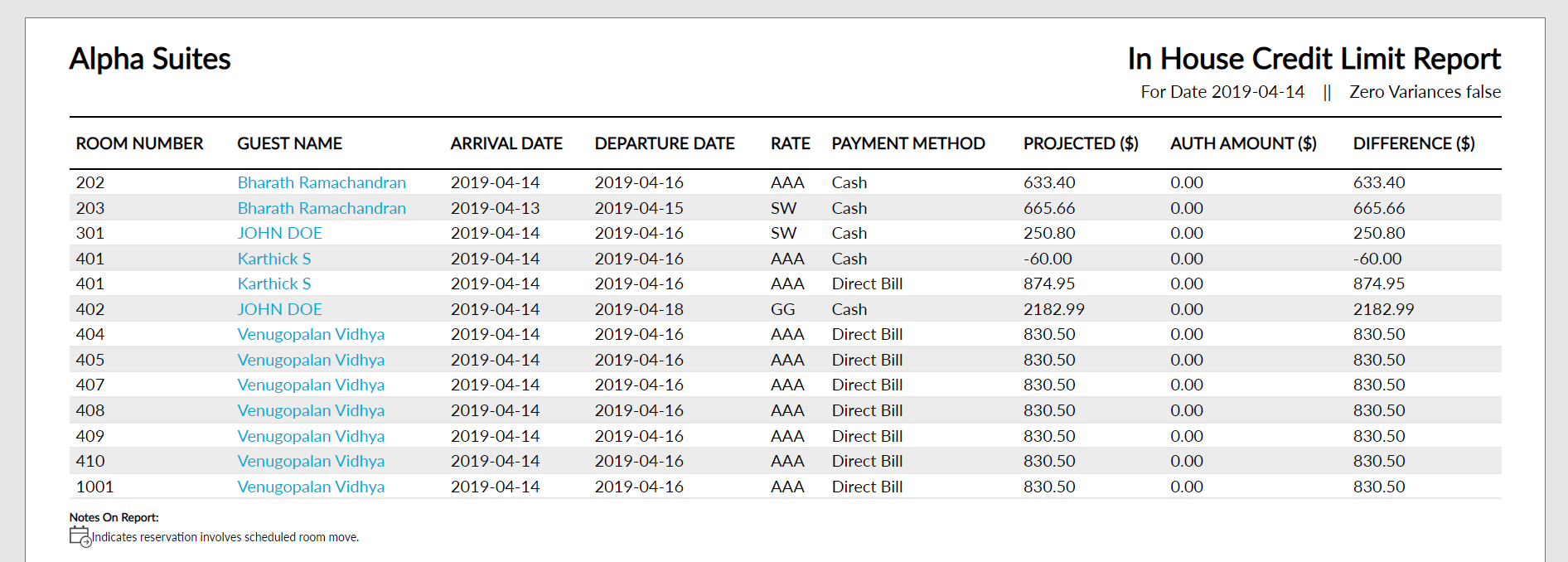
Report Parameters
This report displays the following parameters:
|
Field |
Description |
|---|---|
|
Room Number |
The room number that the guest is staying in, if assigned. |
|
Guest Name |
The guest name on the reservation. |
|
Arrival Date |
The arrival date of each reservation. |
|
Departure Date |
The departure date of each reservation. |
|
Rate |
The rate being charged for each reservation. |
|
Payment Method |
The payment method code associated to each folio on the reservation. |
|
Projected |
The projected balance of each payment method. This is based on the estimated charges for the payment method. |
|
Auth Amount |
The credit card authorization on file for each credit card payment method of each reservation. |
|
Difference |
The difference between the remaining projected balance for that payment method and auth on file. |